
If you downloaded Letterly and thought, cool, now what. Same.
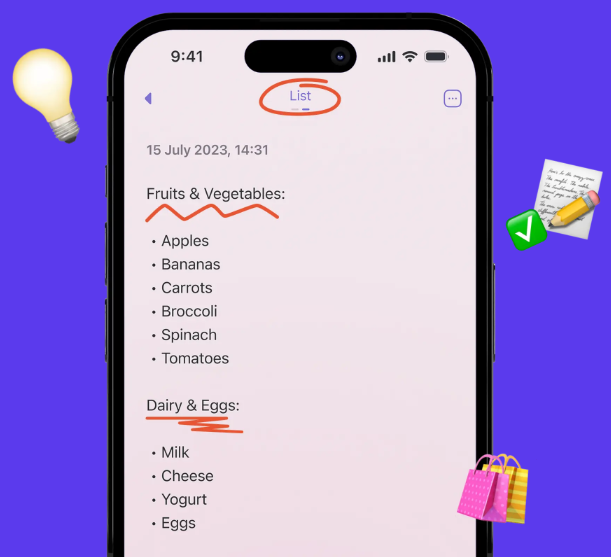
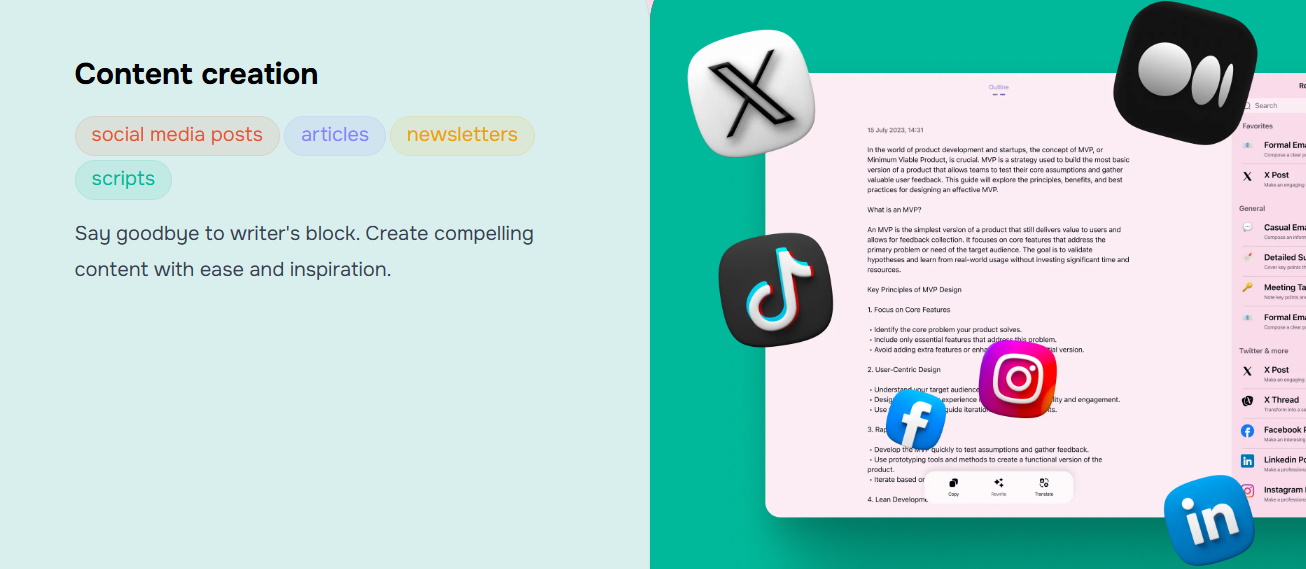
Letterly is one of those apps that looks simple, but if you set it up properly once, you stop fiddling with it forever. And it turns into this quiet little machine for turning messy thoughts into clean writing. Captions, emails, meeting notes, LinkedIn posts, even journal entries you actually want to reread.
This is a fast setup guide, but I’m still going to show you the small stuff that makes a big difference. The shortcuts. The defaults. The stuff you only learn after using it for a couple weeks and going, ohhh that’s how I should’ve done it.
What Letterly is actually good at (so you don’t use it wrong)
Letterly is best when you:
- speak or paste rough notes
- then convert that into structured text in a specific style
It’s not trying to be a full document editor like Google Docs. It’s not a long form research writer either. It’s more like your personal “make this readable” button.
So the pro mindset is simple:
- Capture fast (voice or quick notes)
- Convert with the right template
- Do a quick human pass
- Export to wherever the writing actually lives
That’s it.
Now let’s set it up so that flow is basically automatic.
Step 1: Do the 2 minute “good defaults” setup first
Before you create anything, open Letterly settings and lock in your defaults. This is where most people skip, then later they’re annoyed that every output sounds slightly off.
Choose your default language and tone
Set your default output language first. Even if you only write in English. Especially if you sometimes dictate with slang, names, or you’re not in the US. It helps the model stop guessing.
Then pick a tone you actually want to sound like most days.
If you’re unsure, pick one of these as your baseline:
- Clear and casual for daily use
- Professional but friendly for work messages
- Concise if you hate long outputs
You can always override per note, but a good default means you don’t need to.
Turn on auto punctuation and paragraphing (if available)
If Letterly has toggles for punctuation or formatting, enable them. Dictation without punctuation is fine, but editing it later is a tax you pay every day.
You want your raw capture to already have:
- sentences
- line breaks
- readable chunks
Not perfect. Just not a wall of text.
Step 2: Set up your “Pro Templates” (the ones you’ll reuse constantly)
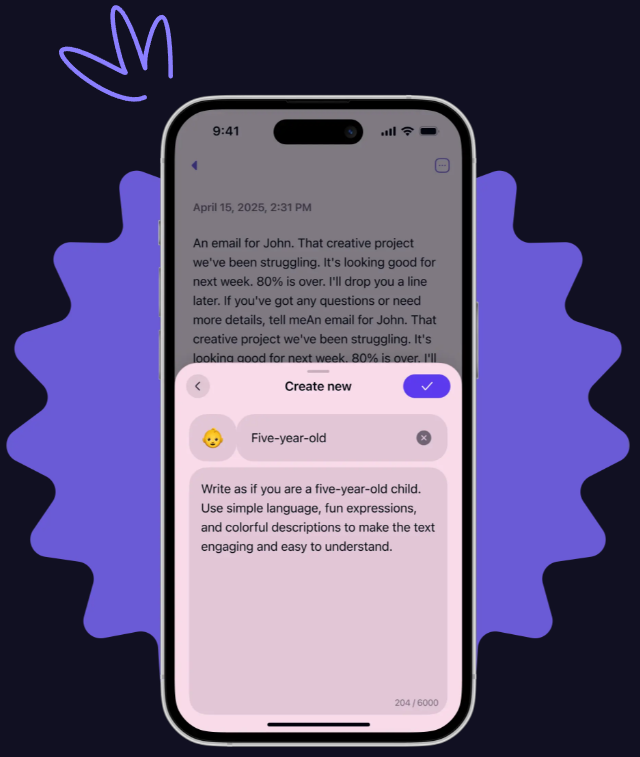
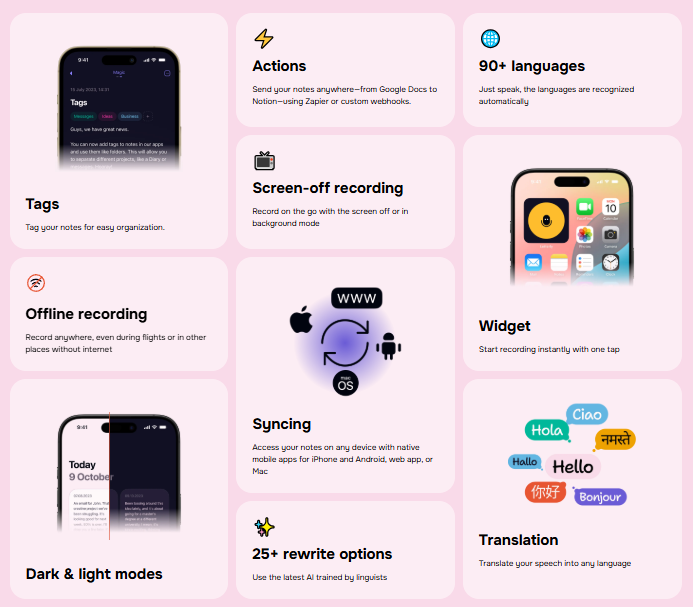
Letterly usually ships with built in templates or modes. But the real power is having a small set of go to conversions you can apply in one tap.
Think: 6 to 10 templates max. Any more and you’ll scroll and hesitate and not use it.
Here’s a clean starter set that covers almost everything.
Template 1: “Fix my messy draft”
Use when you already wrote something but it’s awkward.
Goal: clarity without changing meaning.
Suggested prompt/settings inside Letterly (if it allows custom instructions):
- Keep my meaning
- Make it flow naturally
- Remove repetition
- Keep it human, not salesy
This one is your safety net.
Template 2: “Email reply (short, friendly)”
Use when you need to respond fast and not overthink it.
Instructions:
- 4 to 8 sentences
- friendly but direct
- include a clear next step
- no corporate fluff
This saves so much time it’s stupid.
Template 3: “Meeting notes into action items”
This is the one that makes you look organized.
Instructions:
- Bullet summary first
- Action items with owners and deadlines
- Questions / blockers at the end
Even if your input is chaotic, Letterly will impose structure.
Template 4: “LinkedIn post (real, not cringe)”
If you do any professional posting, you need a template that avoids that generic AI voice.
Instructions:
- Start with a specific moment or observation
- Short paragraphs
- No hype words like “game changer”
- One practical takeaway
- Optional soft question at the end
You can also add: “Avoid clichés and avoid sounding like a startup ad.”
Template 5: “Tweet or thread draft”
Instructions:
- 1 main idea
- 1 hook line
- 3 to 5 bullets
- keep it punchy
- no hashtags unless asked
Template 6: “Journal entry from voice notes”
This one is underrated. You dictate random feelings, and it gives you something coherent.
Instructions:
- Keep it private sounding
- Use first person
- Keep it reflective, not motivational
- End with one small intention for tomorrow
Now you’ve got templates for 90 percent of life.
Step 3: Build your personal “voice” once (so outputs sound like you)
This is where pro use starts.
If Letterly supports a custom style note, profile, or “how should I write” instruction, add a short voice guide. Short is important. Not a novel.
Here’s a plug and play voice profile you can paste and edit:
Write in simple, natural English.
Keep sentences mostly short.
Use contractions.
Avoid buzzwords and corporate tone.
Prefer clarity over cleverness.
Keep the pacing human, with occasional sentence fragments.
Do not sound overly enthusiastic.
If a point is obvious, don’t over explain it.
If you want it even more “you”, add 3 lines like:
- I often start sentences with “Honestly,” “So,” or “Here’s the thing.”
- I like short paragraphs.
- I don’t use exclamation marks much.
That’s enough. You’re not training a model. You’re giving it guardrails.
Step 4: Your first 10 minutes using Letterly (the fastest learning loop)
Don’t start with some huge important piece of writing. Start with low stakes reps. You want to learn what inputs get the best outputs.
Do this:
- Record a 30 second voice note about anything you did today
- Convert it with “Fix my messy draft”
- Convert the same note with “LinkedIn post”
- Compare the difference
- Edit one line manually
- Export it somewhere, even if you delete it after
That’s it. You’ll immediately understand how the templates shape the output.
And you’ll also notice something important.
Letterly is only as good as your raw input.
Which brings us to the part most guides skip.
Step 5: Dictate like someone who wants good output
You don’t have to speak like a robot. But a few small habits make Letterly’s output way cleaner.
Use “verbal headings”
When you change topics, literally say:
- “Next point”
- “New section”
- “Quick example”
- “Action items”
Even if Letterly doesn’t treat those as headings automatically, it gives the model structure cues.
Say the punctuation sometimes (only when needed)
If you’re dictating something that needs precision, say:
- “new paragraph”
- “comma”
- “period”
Not all the time. Just when you want the output to be crisp.
Don’t edit while you talk
This is a big one.
Most people dictate, then they start correcting themselves mid sentence. The transcript becomes a mess.
Instead, do this:
- talk straight through
- then add one more sentence at the end like, “Okay rewrite that cleanly.”
Letterly is great at cleaning. Let it.
Step 6: The “two pass” workflow that makes Letterly feel magic
Here’s a pro workflow that’s fast and gets consistently strong results.
Pass 1: Structure
Take your messy input and run a template that focuses on structure.
Examples:
- meeting notes into action items
- outline format
- bullet summary
You’re not trying to publish this. You’re trying to make it organized.
Pass 2: Style
Now take that structured output and run it through a voice based template.
Examples:
- fix my messy draft
- email reply (short, friendly)
- LinkedIn post
This avoids the common problem where you ask for style too early and it creates fluff.
Structure first. Style second.
Step 7: Save “snippets” you keep rewriting (and stop wasting time)
If Letterly has a snippets feature, favorites, or anything like that, use it for repeated blocks.
A few high value snippets to store:
- your standard intro line for emails
- your meeting follow up closing
- your bio (short and long)
- your common CTA like “If you want, I can send a quick draft.”
Then when you dictate, you can just say, “End with my standard follow up close.” And paste it in after.
Even if Letterly can’t auto insert snippets, you still win because you aren’t reinventing your own writing every day.
Step 8: Use Letterly for “input capture”, not just writing
This is where it becomes a daily tool instead of a sometimes tool.
A few ways to use it that feel almost unfair:
Turn a walk into a blog draft
Open Letterly, dictate your thoughts while walking, then convert:
- “Turn this into a blog outline”
- then: “Write a first draft in my voice”
Even if you only keep 30 percent, you got a draft from a walk.
Turn scattered ideas into a clear plan
Dump messy bullets like:
- what you want
- what’s blocking you
- what you’ve tried
Then convert into:
- “Decision memo”
- “Pros and cons”
- “Next steps plan”
It’s like thinking on paper, but faster.
Turn voice complaints into usable feedback
This sounds funny but it works.
Dictate: “Here’s what’s wrong with this project…”
Then convert to: “Write constructive feedback, calm tone, specific.”
Now you can send feedback without sounding heated.
Step 9: The quick edit checklist (so you don’t publish AI-ish text)
Letterly can output clean writing, but you still need a human pass. Fast though. Like 30 seconds.
Here’s the checklist I use:
- Remove the first sentence if it sounds generic
- Check for repeated phrases
- Add one specific detail that only you would know
- Shorten any paragraph longer than 4 lines
- Replace any overly polished line with something simpler
That’s usually enough to make it feel real.
Common issues and quick fixes
“It sounds too formal”
Fix:
- switch to a more casual template
- add “use contractions” and “keep it conversational”
- remove words like “therefore”, “moreover”, “furthermore”
“It’s too long”
Fix:
- ask for a word limit
- ask for bullets
- say “keep only the most important points, remove filler”
“It changed my meaning”
Fix:
- add “do not add new claims”
- add “keep all facts exactly as stated”
- do the two pass workflow: structure first, then style
“It’s good but kind of bland”
Fix:
- add one example in your input
- or say: “Add one specific example and one strong opinion, but keep it grounded.”
Blandness is usually an input problem. Give it something real to work with.
A simple “pro routine” you can copy
If you want Letterly to stick, give it a daily job.
Here’s an easy routine:
- Morning: 60 second voice note, “today’s priorities”
- Convert to: action list
- Afternoon: quick meeting notes conversion
- End of day: 2 minute reflection voice note
- Convert to: journal format
That’s it. You’ll suddenly have documentation of your life and work without trying.
Wrap up (what to do right now)
If you want to use Letterly like a pro, do these three things today:
- Set your default tone and formatting
- Create 6 reusable templates (start with the ones above)
- Add a short voice profile so outputs sound like you
Then run the two pass workflow the next time you write anything even slightly important.
Structure first. Style second. Quick human edit. Done.
That’s the whole thing. And once it clicks, you’ll start using Letterly constantly without thinking about it. Which is kind of the point.
FAQs (Frequently Asked Questions)
What is Letterly and how does it help with writing?
Letterly is a simple yet powerful app designed to transform messy thoughts, rough notes, or voice dictations into clean, structured writing. It’s ideal for captions, emails, meeting notes, LinkedIn posts, and journal entries, acting as your personal “make this readable” button rather than a full document editor.
How should I set up Letterly for the best results?
Start with the 2-minute “good defaults” setup by choosing your default output language and tone (like Clear and casual or Professional but friendly). Enable auto punctuation and paragraphing if available to ensure your raw captures have sentences and readable chunks. This initial setup minimizes future editing and improves output quality.
What are some essential templates I should create in Letterly?
Create 6 to 10 “Pro Templates” you can reuse constantly. Key templates include: ‘Fix my messy draft’ for clarity without changing meaning; ‘Email reply (short, friendly)’ for quick responses; ‘Meeting notes into action items’ to organize chaotic notes; ‘LinkedIn post (real, not cringe)’ for authentic professional posts; ‘Tweet or thread draft’ for punchy social media content; and ‘Journal entry from voice notes’ for coherent personal reflections.
How can I personalize Letterly outputs to sound like me?
If Letterly supports custom style profiles or instructions, add a short voice guide with preferences such as writing in simple natural English, using contractions, avoiding corporate buzzwords, preferring clarity over cleverness, keeping pacing human with occasional sentence fragments, and minimizing enthusiasm or exclamation marks. Including specific habits like starting sentences with “Honestly,” helps tailor the output to your unique voice.
What is the recommended workflow to use Letterly effectively?
The pro mindset involves four steps: 1) Capture fast using voice or quick notes; 2) Convert your input with the right template; 3) Perform a quick human review pass; 4) Export the polished writing to where it actually belongs. Setting up defaults and templates beforehand makes this flow almost automatic.
How do I get started learning Letterly quickly?
Begin with low-stakes practice by recording a 30-second voice note about anything you did today. Then convert it using the ‘Fix my messy draft’ template to see how Letterly transforms your raw input into clear text. This fast learning loop helps you understand what inputs yield the best outputs before tackling important writing tasks.
Read more: Teckpo