
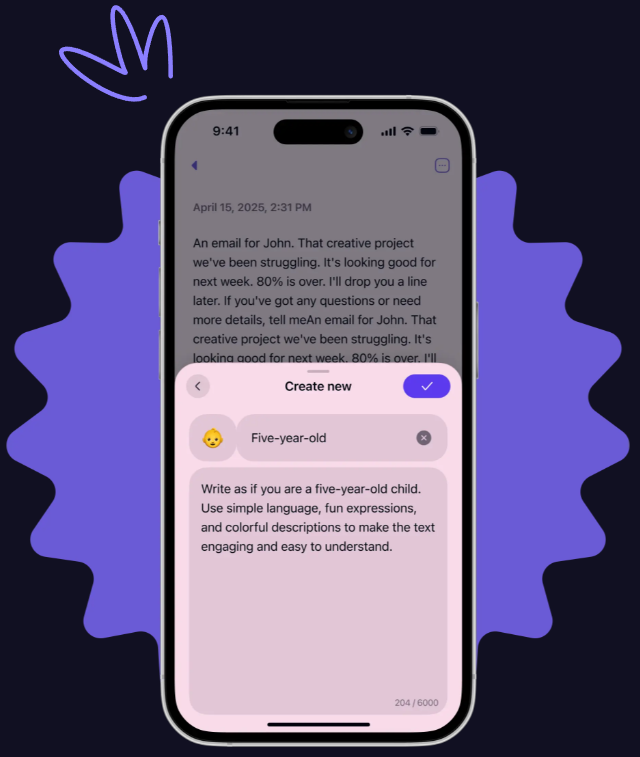
Letterly is one of those tools you open “just to try”, and then a week later it is basically living in your day. It is not trying to be your full writing suite. It is more like… your fast translator between messy thoughts and clean text.
And that is the whole game.
Most people use it once, dictate something, copy it out, and that is it. Which is fine. But if you set up a few repeatable workflows, it turns into a little production line for copy, email, and notes. You stop staring at a blank screen. You stop rewriting the same thing ten times. You get your first draft faster and cleaner, which is what actually matters.
Below are the best Letterly workflows I have used (and seen other people use) that actually hold up in real life. Not theoretical productivity stuff. Real, boring, useful.
Before we start: the 3 things that make Letterly work
If you skip this, you will still get value. But these three habits are what make the workflows feel almost unfair.
1) Always dictate messy first
Do not try to “perform” while talking. Say the awkward sentence. Say the half sentence. Correct yourself. Ramble. The point is to get raw material out.
Letterly is good at cleaning. You are good at thinking. Let each one do its job.
2) Use a consistent structure in your input
Even if your thoughts are messy, use simple cues:
- “Goal is…”
- “Audience is…”
- “Tone should be…”
- “Include these points…”
- “Call to action is…”
You can literally say that out loud. It helps the output come out shaped, not random.
3) Have 3 to 5 “default styles”
If you bounce between tones all day, you waste time. I keep a few defaults and rotate them:
- Casual and direct
- Professional but warm
- Short and punchy
- Polished marketing
- Friendly support tone
Once you have these, most workflows become plug and play.
Ok. Workflows.
Workflow 1: The “One Minute Ad” (short copy that does not sound like an ad)
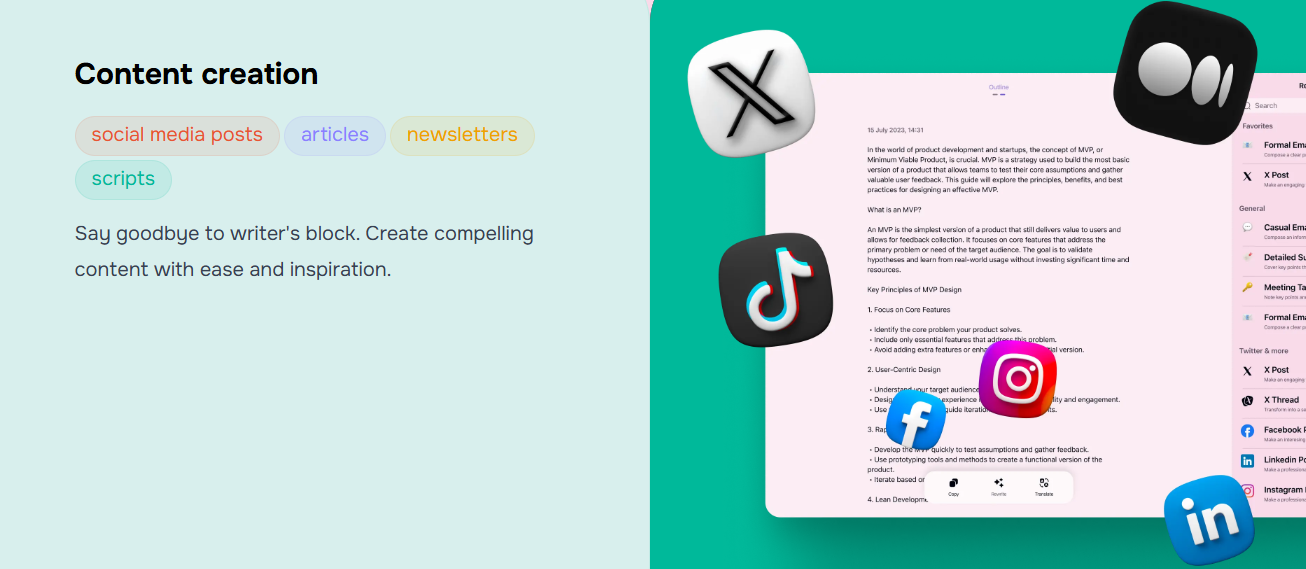
This is for: quick landing page blurbs, app store descriptions, LinkedIn hooks, website hero text, even bio lines.
How it goes
- Open Letterly.
- Dictate for 30 to 60 seconds using this pattern:
Say something like:
- “Product is: [what it is].”
- “Who it is for: [audience].”
- “Main pain: [pain].”
- “Main promise: [benefit].”
- “Proof: [numbers, results, credibility].”
- “Tone: short, confident, not cringe.”
- “Give me 5 options.”
Example dictation
“Product is a habit tracker for people with ADHD. Who it is for is adults who keep starting routines and then dropping them. Main pain is they forget and then feel guilty. Main promise is it makes routines stupid simple with reminders that do not annoy you. Proof is we have 40,000 users and a 4.8 rating. Tone should be short, confident, a little playful, not salesy. Give me five hero headline plus subheadline options.”
What you do next
- Pick one.
- Copy it into your doc.
- Then do one more pass in Letterly: “Make it 20 percent shorter” or “Make it more human and less marketing.”
That second pass is where it starts to feel like you wrote it.
Workflow 2: “Swipe File Builder” (turn random ideas into usable copy)
This is for: creators, marketers, founders, anyone collecting phrases and angles.
The problem with swipe files is they become graveyards. The trick is turning the swipe into your own words.
How it goes
- Paste (or read out) a raw snippet you like.
- Add context: what you are selling, who it is for.
- Ask for variations in your voice.
Prompt pattern (say it out loud)
- “Here is a swipe line: [line].”
- “My product is: [thing].”
- “Audience: [audience].”
- “Rewrite this idea into 10 hooks in my voice. Avoid copying the original wording.”
Pro tip
Ask for categories:
- 3 curiosity hooks
- 3 pain hooks
- 2 proof hooks
- 2 contrarian hooks
Now you are building a real bank of angles, not just pretty sentences.
Workflow 3: The “Bullet to Brand” landing page section
This is for: turning ugly notes into clean sections. Features, benefits, how it works, FAQs.
How it goes
- Dictate bullet points only. No sentences. Just content.
- Then ask Letterly to shape it into a section.
Dictation example
“Landing page section. Heading should communicate speed. Bullets: set up in 2 minutes. works with gmail and outlook. auto follow ups. tracks replies. templates for sales and partnerships. add a testimonial line about saving 5 hours per week. tone is modern and confident.”
Then convert
Ask: “Turn this into a landing page section with a heading, short paragraph, and bullets. Keep it tight.”
You are basically using Letterly as a formatter and clarifier. And it is very good at that.
Workflow 4: The “3 Version CTA” (because you always need a CTA and it is always annoying)
This is for: buttons, end of posts, end of newsletters, end of landing sections.
How it goes
Dictate:
- “CTA goal: [trial signups / booking calls / replies / downloads].”
- “Tone: [casual / confident / premium].”
- “Give me 10 CTA lines, max 6 words each.”
Then pick two and A B test later.
Small thing. Big impact.
Workflow 5: The “Inbox Zero Reply” (fast replies that still sound like you)
This is for: client email, partnerships, customer support, awkward replies you keep postponing.
The mistake people make
They dictate the email like they are already writing it perfectly. That is slow.
Instead, dictate the facts. Then ask Letterly to produce the polished email.
How it goes
- Dictate the situation like you are explaining it to a friend.
- Include boundaries, timeline, and next step.
- Ask for 2 tone options.
Dictation template
“Write an email reply. Context: [what they said]. My answer: [your answer]. Constraints: [timeline, pricing, boundaries]. Next step: [what you want them to do]. Tone: warm, clear, not overly apologetic. Give me two versions.”
Example
“Write an email reply. Context: client wants two extra revisions included. My answer is I can do it but it will be billed as an add on because the scope is expanding. Constraints: I can deliver by Friday if we confirm today. Next step: ask them to approve the updated quote. Tone warm, clear, not overly apologetic. Two versions.”
This saves you from over explaining, and it keeps you from writing a weird guilt email.
Workflow 6: “Forwardable Follow Up” (the follow up that actually gets replies)
This is for: sales, partnerships, recruiters, guest posts, anything where silence happens.
Good follow ups are short, specific, and easy to forward internally.
How it goes
Dictate:
- “Write a follow up email.”
- “Include a one sentence recap.”
- “Include one clear question.”
- “Offer two next steps.”
- “Keep under 90 words.”
- “Tone: confident, friendly.”
Add this line if you want magic
“Make it easy to forward.”
Letterly will naturally make the recap clearer and remove extra fluff.
Workflow 7: The “Meeting Notes to Action Plan” (this one is a life saver)
This is for: calls, standups, coaching sessions, project meetings.
Here is the thing about meetings. The meeting itself is not the cost. The cost is the fuzzy “so what are we doing” afterward.
How it goes
- Right after the meeting, do a quick voice dump. Even 2 minutes.
- Include names and decisions.
- Ask Letterly to output in a structured format.
Dictation template
“Turn this into meeting notes with sections: Summary, Decisions, Action items with owner and due date, Open questions, Risks. Here is the raw dump: [dump].”
Extra move
Ask for a follow up email too:
“Also write a short follow up email I can send to attendees. Keep it under 150 words.”
Now you are the person who always follows up clearly. Which, in most workplaces, makes you look way more organized than you feel.
Workflow 8: “Voice Journal to Clear Thoughts” (notes that actually help you think)
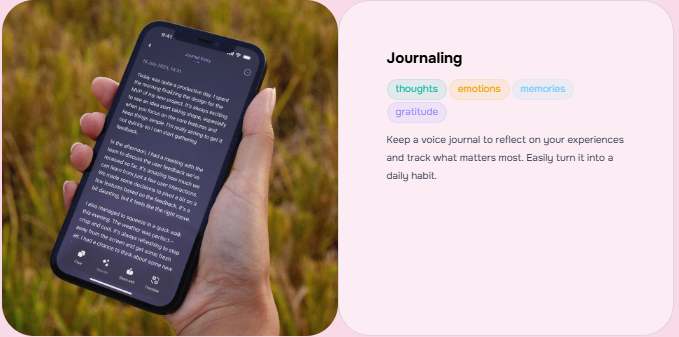
This is for: journaling, therapy style reflection, decision making, planning.
You can use Letterly like a mirror. Ramble. Get it out. Then ask it to reflect back the shape.
How it goes
- Dictate whatever is in your head. No structure.
- Ask for:
- key themes
- what you are avoiding
- possible next steps
- one small action for today
Prompt
“Summarize what I just said. Pull out the main themes and what I seem to be worried about. Then suggest 5 next actions, starting with the smallest.”
It sounds simple, but it is weirdly calming. Because your brain stops looping.
Workflow 9: The “Idea to Outline” (for blog posts, videos, newsletters)
This is for: content creators who have ideas but hate outlining.
How it goes
Dictate:
- the main idea
- who it is for
- what problem it solves
- 3 points you want to include
- one example or story you could use
Then ask for an outline with headings and rough bullet content.
Dictation example
“I want to write a post about why most morning routines fail. It is for busy people who feel guilty. Include points: routines are too long, they rely on motivation, they ignore environment. I can use the story about me trying to wake up at 5 am and hating it. Outline it with an intro hook, headings, and a conclusion with a simple routine suggestion.”
You get a working skeleton in a minute. Then you can write like a human, because you are not lost anymore.
Workflow 10: The “Draft Cleaner” (make your writing clearer without losing your voice)
This is for: when you already wrote something, but it is messy or too long.
How it goes
- Paste your draft into Letterly.
- Ask for one specific improvement at a time.
Good asks:
- “Make this 25 percent shorter, keep my tone.”
- “Remove repetition.”
- “Make the first paragraph punchier.”
- “Fix clarity, do not add new ideas.”
- “Make it sound more like spoken English.”
The key is not asking for “improve this”. That gets you generic.
Ask for one type of improvement, then you stay in control.
Workflow 11: The “Two Audience Rewrite” (one idea, different people)
This is for: when you need to say the same thing to customers, your boss, and your friend. Same content, different framing.
How it goes
Dictate your core message once. Then ask:
- “Rewrite for an executive audience, concise, outcome focused.”
- “Rewrite for a beginner audience, friendly, step by step.”
You can also do:
- “Rewrite as a Slack message under 500 characters.”
- “Rewrite as a customer facing help doc paragraph.”
This is how you stop rewriting everything from scratch.
Workflow 12: The “Personal Knowledge Base Note” (notes you can find later)
This is for: Notion, Obsidian, Apple Notes, Google Keep. Anywhere.
A good note is not a transcript. It is an artifact you can reuse.
How it goes
Dictate a messy note. Then ask Letterly to output:
- Title
- Summary
- Key points
- Examples
- Tags
- Next actions
Prompt
“Turn this into a knowledge base note I can save. Add a clear title, a 2 sentence summary, key bullets, and suggested tags. Here is the raw text: …”
Now your notes stop being junk piles.
Little stackable combos (where Letterly really starts to feel powerful)
You can chain workflows together without thinking too hard.
Combo A: Copy pipeline in 10 minutes
- One Minute Ad (Workflow 1)
- Bullet to Brand section (Workflow 3)
- 3 Version CTA (Workflow 4)
- Draft Cleaner on the final (Workflow 10)
That is a full landing page starter pack.
Combo B: Meeting to follow up, no stress
- Meeting Notes to Action Plan (Workflow 7)
- Forwardable Follow Up (Workflow 6)
You basically become the “closer” of meetings.
Combo C: Content from thin air
- Voice Journal to Clear Thoughts (Workflow 8)
- Idea to Outline (Workflow 9)
- Draft Cleaner (Workflow 10)
This is how you turn a mood into an article.
Common mistakes (and quick fixes)
Mistake 1: Trying to sound smart in the dictation
Fix: talk like you talk. The cleaning happens after.
Mistake 2: Asking for too much at once
Fix: do two passes. First for structure. Second for tone.
Mistake 3: No constraints
If you do not specify length, audience, tone, and format, you will get “fine” output.
Add constraints like:
- word limit
- bullets vs paragraphs
- “no clichés”
- “no buzzwords”
- “write like a human, slightly informal”
Mistake 4: Copying output without editing
Always do a human pass. Even 30 seconds.
A small tweak like changing one sentence to how you would say it makes the whole thing feel real.
My personal “default” templates (steal these)
These are simple, and they work.
Default copy request
“Write this in a confident, human tone. Short sentences. No hype. Avoid clichés. Give me 5 options.”
Default email request
“Warm, direct, clear. No long paragraphs. End with one specific question.”
Default notes request
“Organize into Summary, Key points, Action items, Open questions. Keep it scannable.”
Wrap up
Letterly is best when you treat it like a workflow tool, not a magic writer.
Dictate messy. Add a few constraints. Do one extra pass to tighten the output. And build a small set of repeatable patterns for the stuff you write every week anyway, copy, emails, notes.
If you want a simple place to start, start here:
- One Minute Ad for copy
- Inbox Zero Reply for email
- Meeting Notes to Action Plan for notes
Do those three for a few days and you will feel it. The “blank page” part of writing gets way smaller. And honestly, that is the whole win.
FAQs (Frequently Asked Questions)
What is Letterly and how does it help with writing?
Letterly is a tool designed to quickly transform messy thoughts into clean, polished text. It acts as a fast translator between raw ideas and refined copy, helping users generate first drafts faster and cleaner without the need for a full writing suite.
What are the three key habits to maximize Letterly’s effectiveness?
To get the most out of Letterly, you should: 1) Always dictate messy first without trying to be perfect; 2) Use a consistent structure in your input with simple cues like ‘Goal is…’, ‘Audience is…’, ‘Tone should be…’; 3) Maintain 3 to 5 default writing styles such as casual, professional, or friendly support tone to streamline your workflows.
Can you explain the ‘One Minute Ad’ workflow in Letterly?
The ‘One Minute Ad’ workflow helps create short copy like landing page blurbs or LinkedIn hooks. You dictate key points such as product description, audience, main pain, promise, proof, and tone for 30-60 seconds. Letterly then generates multiple options which you can refine further for a quick, confident, and natural-sounding ad copy.
How does the ‘Swipe File Builder’ workflow work?
This workflow transforms random ideas or swipe lines into personalized copy. You provide a raw snippet along with product and audience context, then ask Letterly to rewrite it into multiple hooks in your voice. You can also request categorized hooks like curiosity, pain, proof, or contrarian angles to build a versatile bank of marketing angles.
What is the purpose of the ‘Bullet to Brand’ landing page section workflow?
The ‘Bullet to Brand’ workflow converts rough bullet points into clean, structured landing page sections. You dictate simple bullet content about features or benefits and then instruct Letterly to shape it into a heading, paragraph, and bullet list with a consistent modern tone—making your notes ready for publishing quickly.
How can Letterly assist with writing effective CTAs?
Letterly’s ‘3 Version CTA’ workflow helps generate concise call-to-action lines tailored to specific goals like trial signups or downloads. By dictating the CTA goal and desired tone (casual, confident, premium), you receive multiple short CTA options (max six words each) that you can test for maximum impact.
Read more: Teckpo